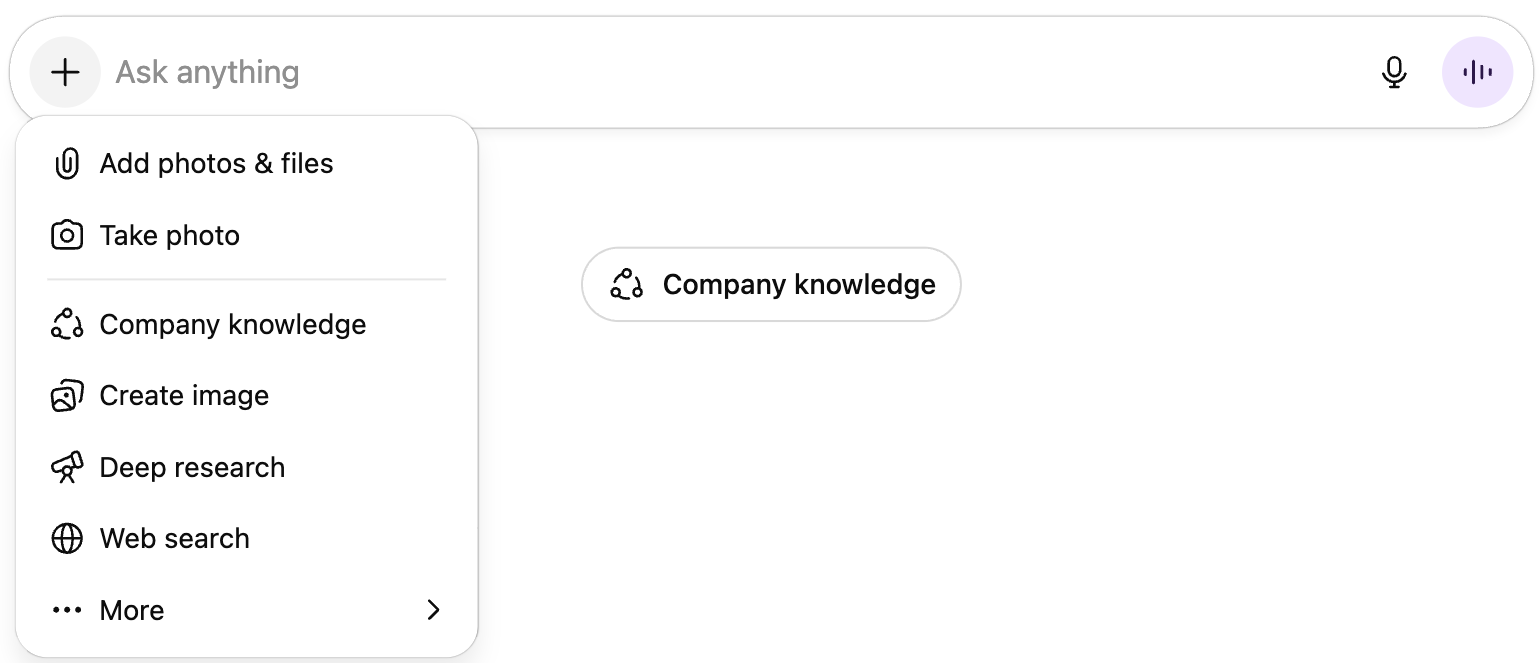
ChatGPT can generate original images directly in the chat and supports prompt-driven editing of existing visuals.
This guide walks you through:
- How to prompt for better results
- Key technical notes (format, size, upscaling)
- The types of edits you can request
How to create an image in ChatGPT
You can create images in 2 ways:
1. Press the “+” in the “ask anything” box to select the “create image” tool.
2. You can also generate images by including “create an image” in your prompt.
Example: "Act like an award-winning outdoor editorial photographer and art director for a modern travel magazine. Create an image for the cover of my blog post on hiking in Oregon. Do no include any words or humans in the photo."
Prompting Best Practices
1. If unspecified, the model defaults to square. If you need your image to follow a specific aspect ratio, specify that!
Example: “I would like you to create a festive holiday video-call background using a 16:9 aspect ratio.”
2. If you need a brand-aligned photo, be very strict with the design rules.
Example: “All generated visuals must use ONLY LearnAIR’s brand colors:
-Light Blue: #a0d5f9
-Dark Raspberry: #a52756
-Charcoal: #333333
-Light Gray: #f2f2f2
No additional colors, gradients, or hues may be introduced unless explicitly requested by the user.
When generating images, you must:
-Specify these colors directly in the image generation prompt.
-Avoid approximations (e.g., “light blue” or “pink”).
-Avoid introducing any new color accents unless the user approves.
3. Use hierarchical prompting when necessary. Tell the model what matters most and least so it prioritizes correctly.
Example: “Priority 1: brand colors.
Priority 2: clean, minimalist layout.
Priority 3: realistic lighting.”
4. Be as detailed as you need in the prompt. This means specifying things like the photo’s setting, photography rules, inclusions and exclusions, mood, lighting, desired style, or even the camera framing… whatever is relevant to you.
Example: “Please generate a photorealistic overhead shot of a tidy desk setup in natural light. Include a notebook and pen, exclude people, use a calm mood, neutral colors, and balanced composition.”
AIRHack: Prompt ChatGPT to “Act like a lead graphic designer with expertise in articulating designs, so that your subdesigners nail your vision, every time. Now enhance my image generation prompt below [insert prompt].”
This process of prompting the to generate, evaluate, or refine prompts as an output is called metaprompting!
Technical Details
File Format
- ChatGPT exports images as PNG files by default.
- PNG = lossless, ideal for graphics, logos, text overlays, and clean lines.
- If you need JPG (e.g., smaller file size), you can ask:
“Convert this PNG to a high-quality JPG.”
Resolution & Size
- Default sizes vary by model, but most creation outputs are ~1024×1024 or similar unless a ratio is specified.
- You can request a specific aspect ratio (e.g., 16:9, 9:16, 4:5) but not always a specific pixel count.
- Upscaling is possible by prompting:
“Increase the resolution and sharpen details for print quality.”
Image Editing Capabilities
- You can upload an image and request:
- Object additions or removals
Outside of the ChatGPT interface, Sora is OpenAI’s visual-generation platform. It excels in producing high-quality, realistic content. The best practices delineated above also apply within Sora 🙂