Canvas is Gemini's dedicated workspace for creating, editing, and iterating on longer documents or other assets. It opens a persistent side-by-side editor where content can be drafted, refined, commented on, and versioned without losing conversational context. Canvas is ideal for reports, policies, playbooks, training materials, proposals, and any asset that benefits from structured iteration.
How to Use Canvas
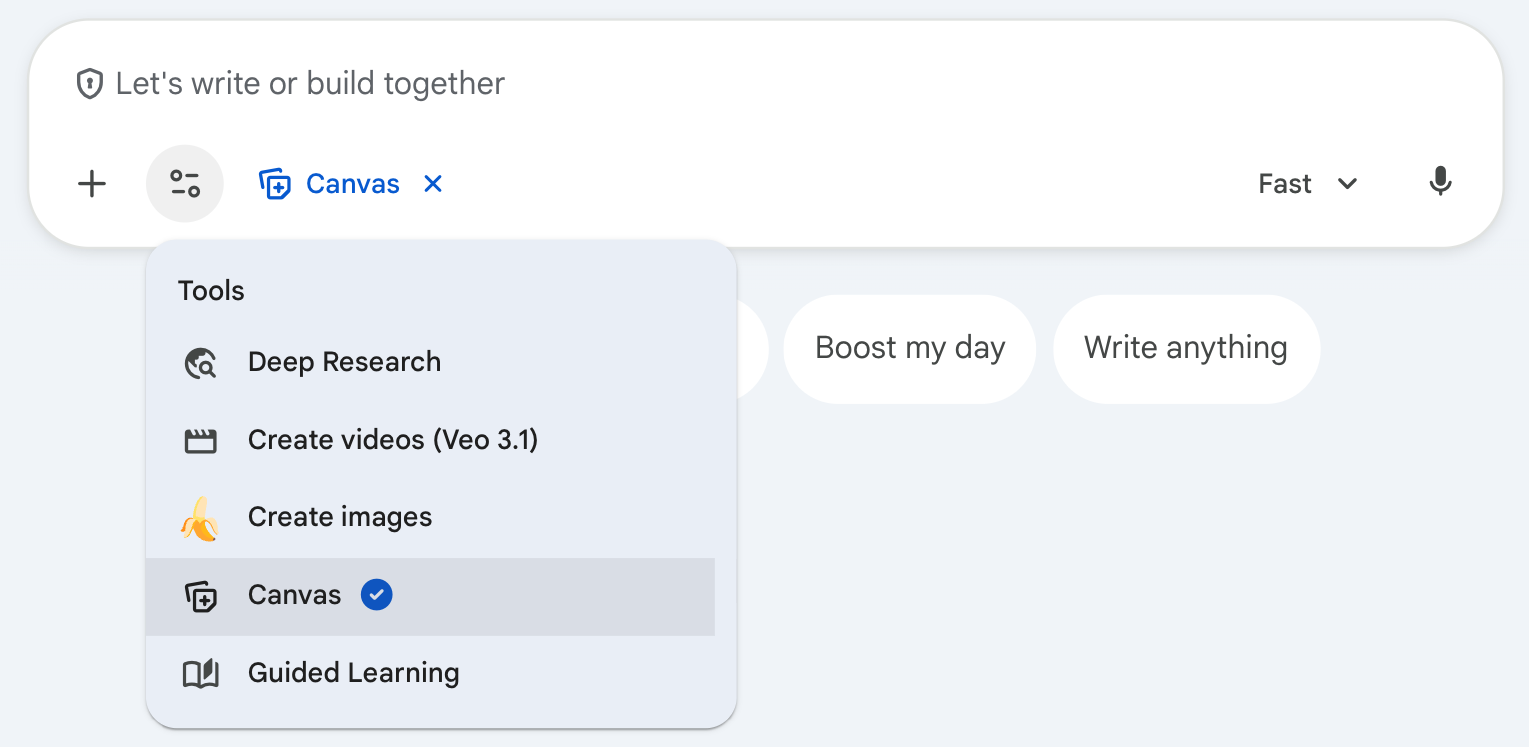
Type your prompt, and click the tools, then select "Canvas."
Prompting Best Practices
Once that document is in Canvas, there are a few ways you can prompt to make refinements.
- Simply type your edit suggestion into the “Let's write or build together” Box.
- Highlight the specific section you want to edit, click “Ask Gemini,” and type your change in the “Edit or explain” box.
- Use the “suggest edits” button on the right menu.
Technical Details
Changes & Versioning
Gemini saves versions & allows you to move between the previous, current, and next versions. Do this using the back and forward arrow buttons in the upper left.
Saving your document
You can export the Canvas content to Google docs.
Transform the document
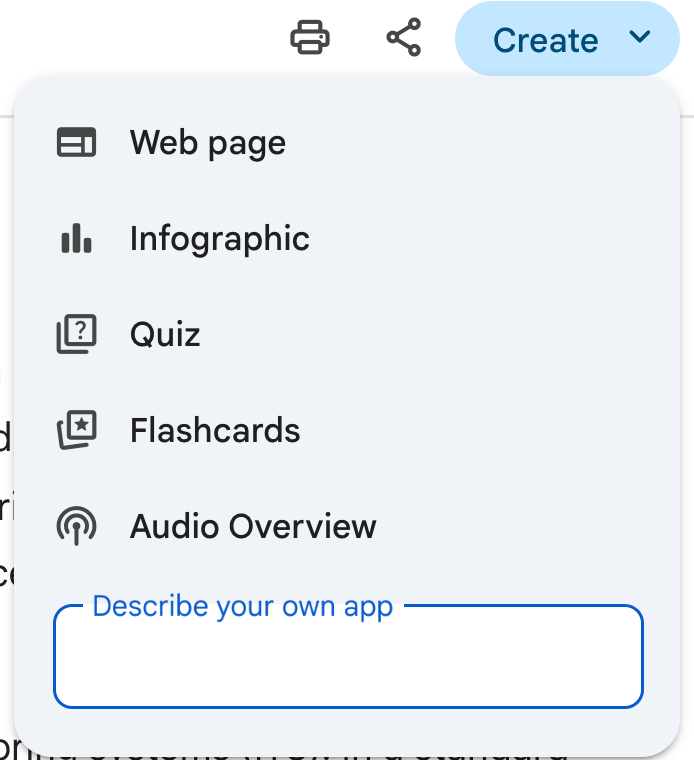
Click the “create" button to transform the document information into a web page, infographic, quiz, flashcard set, or audio overview. If relevant, the code can be run within Canvas using the "Preview" button.
Limitations
Images are not rendered inside Canvas documents.