Canvas is ChatGPT’s dedicated workspace for creating, editing, and iterating on longer documents. It opens a persistent side-by-side editor where content can be drafted, refined, commented on, and versioned without losing conversational context. Canvas is ideal for reports, policies, playbooks, training materials, proposals, and any asset that benefits from structured iteration.
How to Use Canvas
You can enter Canvas in several ways:
- Example: “Create a Canvas document for an AI onboarding guide.”
- ChatGPT opens a blank document and names it automatically (you can rename it).
- Promote existing content into Canvas
- Example: “Move this into Canvas so we can keep editing it.”
- Useful when a chat response grows beyond a few paragraphs.
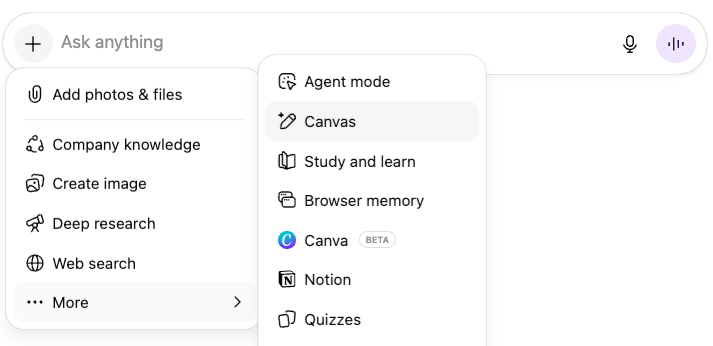
- Type your prompt, and click the “+” > “Canvas” icon to add it as a tool in the “Ask Anything” box
Prompting Best Practices
Once that document is in Canvas, there are a few ways you can prompt to make refinements.
- Simply type your edit suggestion into the “Ask Anything” Box.
- Highlight the specific section you want to edit, click “Ask ChatGPT,” and type your change in the “Edit or explain” box.
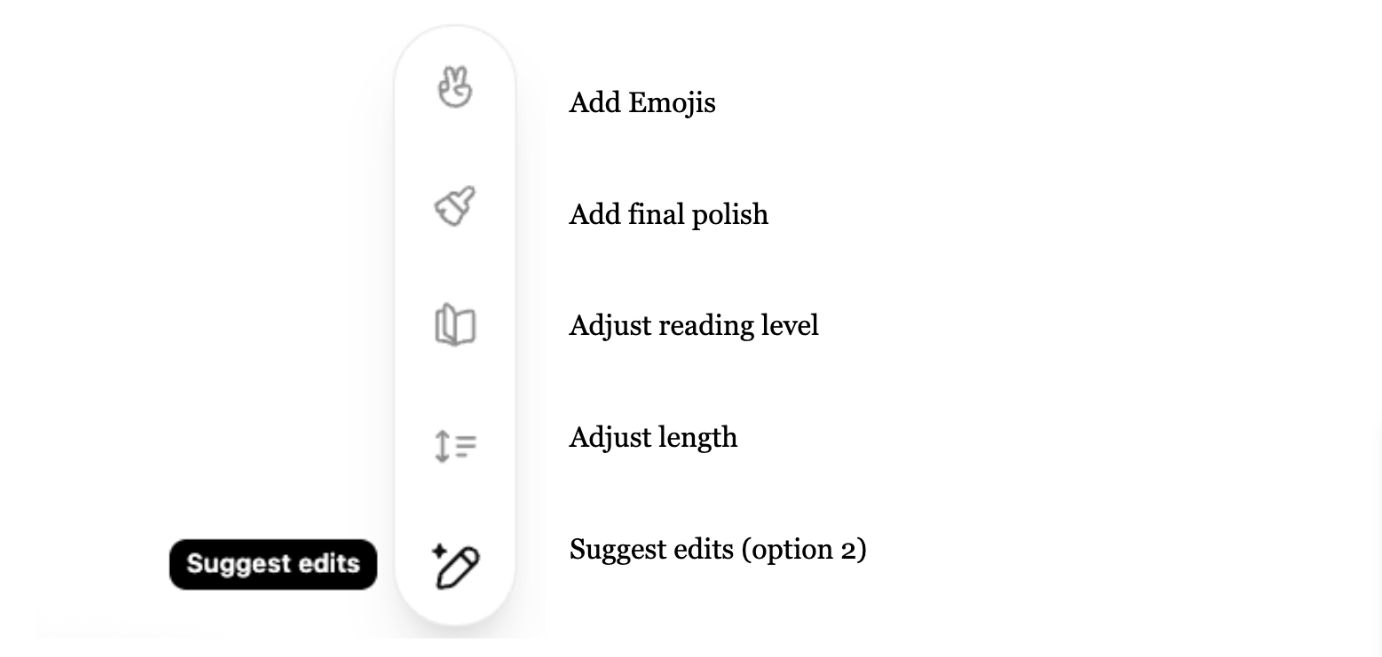
- Use the “suggest edits” bar.
Technical Details
Changes & Versioning
ChatGPT saves versions & allows you to move between the previous, current, and next versions. Do this using the '…' button in the upper right.
It also saves the changes and allows you to see the edits (by you or ChatGPT) in each version. Find these changes using the clock-looking icon in the upper right.
Saving your document
You can download the document as a .pdf, .docx, or .md file.
Sharing the document
Click the “share” button in the upper right.
While the recipient can view and edit the document on their end, unfortunately, those edits are not reflected in the original document.
Limitations
Images are not rendered inside Canvas documents.
If you create a document in canvas in a shared project, unfortunately, the other project members will not be able to view the Canvas document.