
Gemini Features & Capabilities
February 12, 2026 · Last updated on June 19, 2026
Video Creation using Gemini Omni
# Video creation
# Gemini
# Features and capabilities
# Creative tools
How to generate, refine, and edit AI-generated videos
Video creation is entering the AI Era: one where you don’t need a camera crew, a studio, or weeks of editing to bring an idea to life. Gemini is one of the few LLMs that support video production within Gemini with sound included.
How to create a video using Gemini
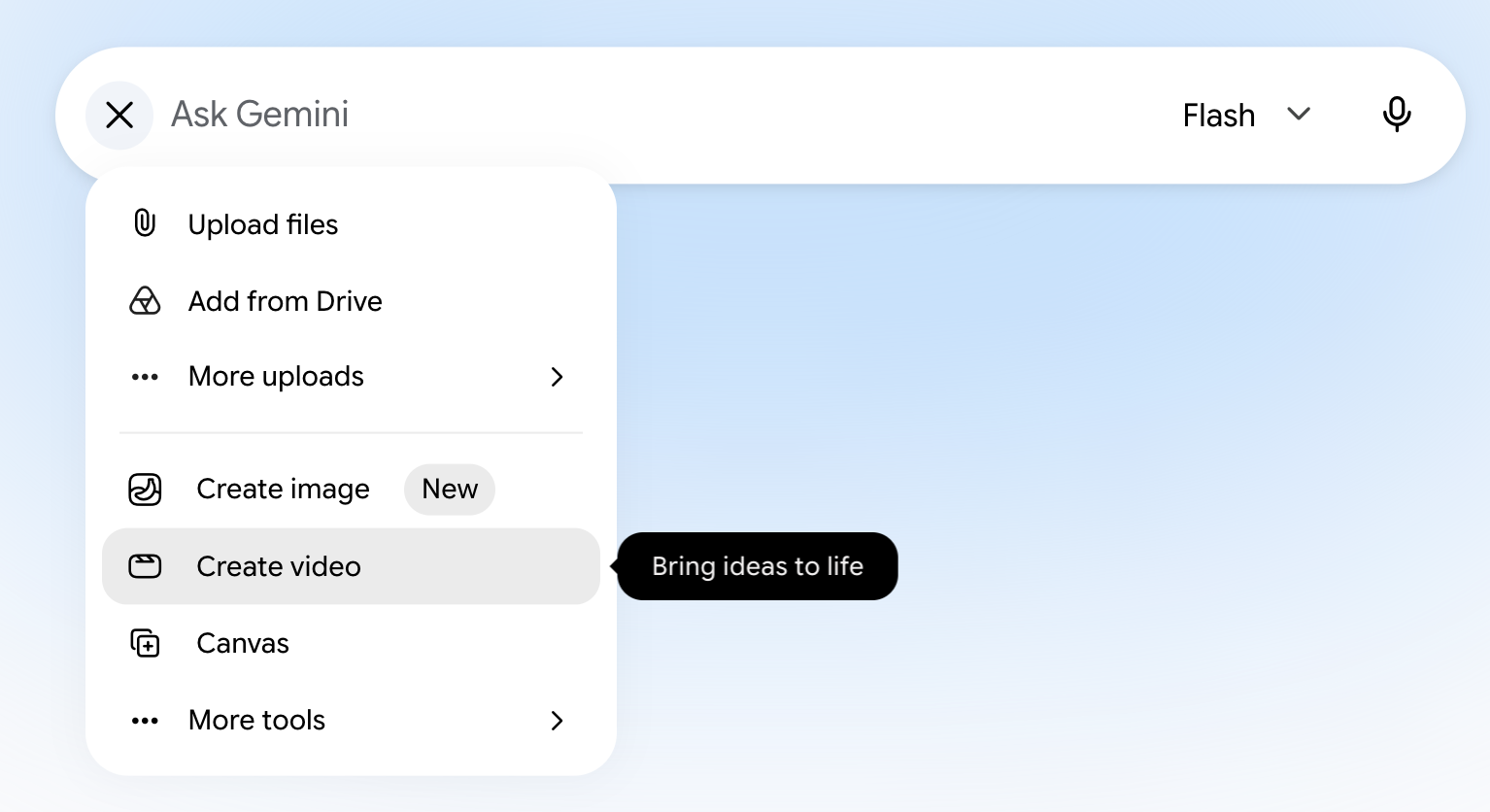
Ensure the Video tool is activated by clicking on "+" > "Create video." Then describe your video in natural language.
Prompting Best Practices
The release of Gemini Omni (May 19, 2026) has changed what prompting looks like for video creation. Now, instead of describing every detail frame by frame, you can explain what you want in natural language and let the model fill in many of the details.
Gemini Omni can generate videos from text, images, video clips, audio, storyboards, and combinations of multiple inputs, while maintaining consistency across scenes and edits through natural conversation. Omni has built-in knowledge of topics like science, history, culture, and physics, so it can understand complex concepts and actions without extensive instructions. The result is a shift from carefully scripting a video to simply directing it.
The key principle to remember as you work with Gemini Omni is that Omni rewards direction more than specification. With that, below are specific prompting best practices.
1. Start with intent, not exhaustive detail.
Gemini Omni understands natural language, visual references, and real-world concepts. Rather than describing every frame, focus on what you want to create and let the model help refine the idea.
Example:
"Act as a senior video producer specializing in short-form educational content. Help me improve this concept before we generate the video. Analyze the story, pacing, visuals, and audience engagement, then suggest ways to make it more compelling: [paste idea]"
2. Define the elements that must stay consistent.
While Gemini Omni can infer many details, you should explicitly call out any constraints that matter to you.
Example:
"A single continuous shot of a child releasing a paper lantern on a quiet beach at dusk. The camera stays behind the child at waist height with no cuts. Keep the lantern's color and design consistent throughout the scene. No on-screen text."
3. Use natural-language edits instead of rewriting entire prompts.
One of Gemini Omni's biggest strengths is iterative editing. After generating a scene, simply describe the change you want.
Examples:
- "Change the butterfly to a bee."
- "Make the camera angle over the violinist's shoulder."
- "Keep everything the same, but make the ships look like white origami."
- "Synchronize the apartment lights with the music."
4. Leverage Gemini Omni's world knowledge.
Unlike earlier video models that often required highly descriptive prompts, Gemini Omni can use its understanding of science, history, culture, geography, and visual storytelling to fill in missing details.
Example:
"Visualize the difference between classical computing and quantum computing in a modern educational animation style."
You don't need to explain every visual element—the model can often infer appropriate representations.
5. Combine references whenever possible.
Gemini Omni can work across images, videos, audio, storyboards, and text simultaneously.
Example:
"Use the character from this image, the motion from this video, and synchronize the animation to the attached music track."
6. Direct the camera like a filmmaker.
Gemini Omni understands many common cinematography terms.
Examples:
- "One continuous shot."
- "Slow dolly push-in."
- "Natural smartphone footage."
- "Static tripod shot."
- "Close-up that widens into a landscape reveal."
7. Experiment aggressively.
Gemini Omni excels at style transfer, visual transformations, and creative reinterpretation. Don't be afraid to push beyond realism.
Examples:
- "Transform the scene into watercolor animation."
- "Turn the astronaut into a sea anemone."
- "Convert the video into a claymation style while preserving motion."
- "Create a four-stage progression from crayon drawing to glass sculpture to risograph print."
Technical Details
File Format
- Gemini exports videos in standard MP4 format.
- MP4 is widely compatible and optimized for streaming, making it the default for most editing and publishing workflows.
- If you need another format for post-production, convert after export using your editing tool.
Duration & Continuity
- Video length limits may evolve as Gemini Omni continues to develop, but the current limitation (June, 2026) is 10 seconds.
- If continuity matters, explicitly state your intent in the prompt.
- Gemini Omni generally responds well to natural filmmaking language and can maintain consistency across iterative edits when these constraints are clearly defined.
Like
Comments (0)
Popular

Sign in or Join the community
Don't Forget The Human Part!

Create an account
Don't Forget The Human Part!