Voice to text is a helpful feature in Gemini when you prefer to talk out your ideas and get a written response back.
How to use voice to text
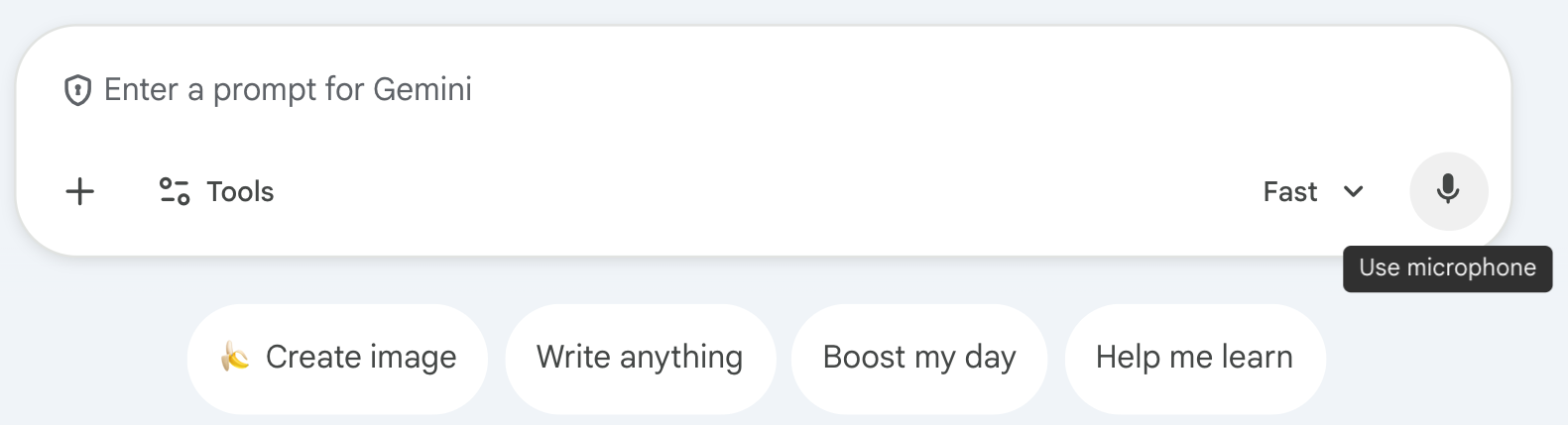
Activate text to voice by selecting the “Use microphone” button.
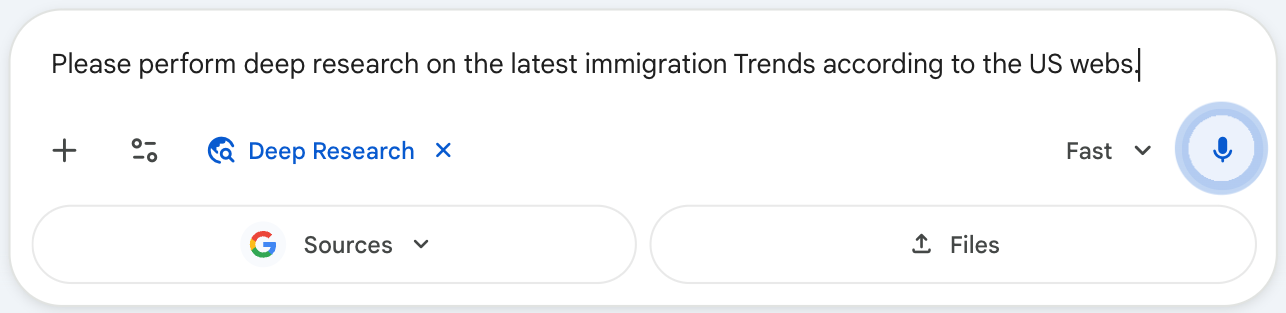
Once selected, you will see your words appear as text. When complete, the button will change from a microphone to a "send" icon.
Prompting Best Practices
- Just talk out your ideas and needs openly and abundantly. After all, you are talking to your digital employee! This works because Large Language Models excel at synthesizing unstructured data (i.e. word vomit). No need to edit yourself mid-sentence.
- Call out uncertainties as you go. Phrases like: "I’m not sure about this part…" help the model know where to focus synthesis and options.
Technical Details
Automatic punctuation and formatting
The model inserts punctuation, capitalization, and paragraph breaks automatically. You can also dictate formatting explicitly (“new paragraph,” “comma,” “period”) if higher precision is needed.
Long-form memory window
Voice mode supports extended monologues. You can speak for several minutes at a time, and the transcription will remain cohesive enough for the model to synthesize into structured output afterward.