

Copilot Features & Capabilities
July 2, 2026 · Last updated on September 17, 2026
Copilot Scheduled Prompts

# Scheduled tasks
# DIRECT
# Copilot
A practical way to automate recurring Copilot prompts for regular updates, summaries, and follow-ups
Scheduled Prompts let you set a Copilot prompt to run automatically at a specific time or on a recurring schedule. Instead of remembering to ask Copilot for the same update every week, you can create the prompt once, choose when it should run, and return to the response when it is ready.
This is useful for repeatable workplace thinking: preparing for the day, reviewing open follow-ups, summarizing meetings, tracking project activity, or gathering weekly updates across Microsoft 365.
How to use Scheduled Prompts
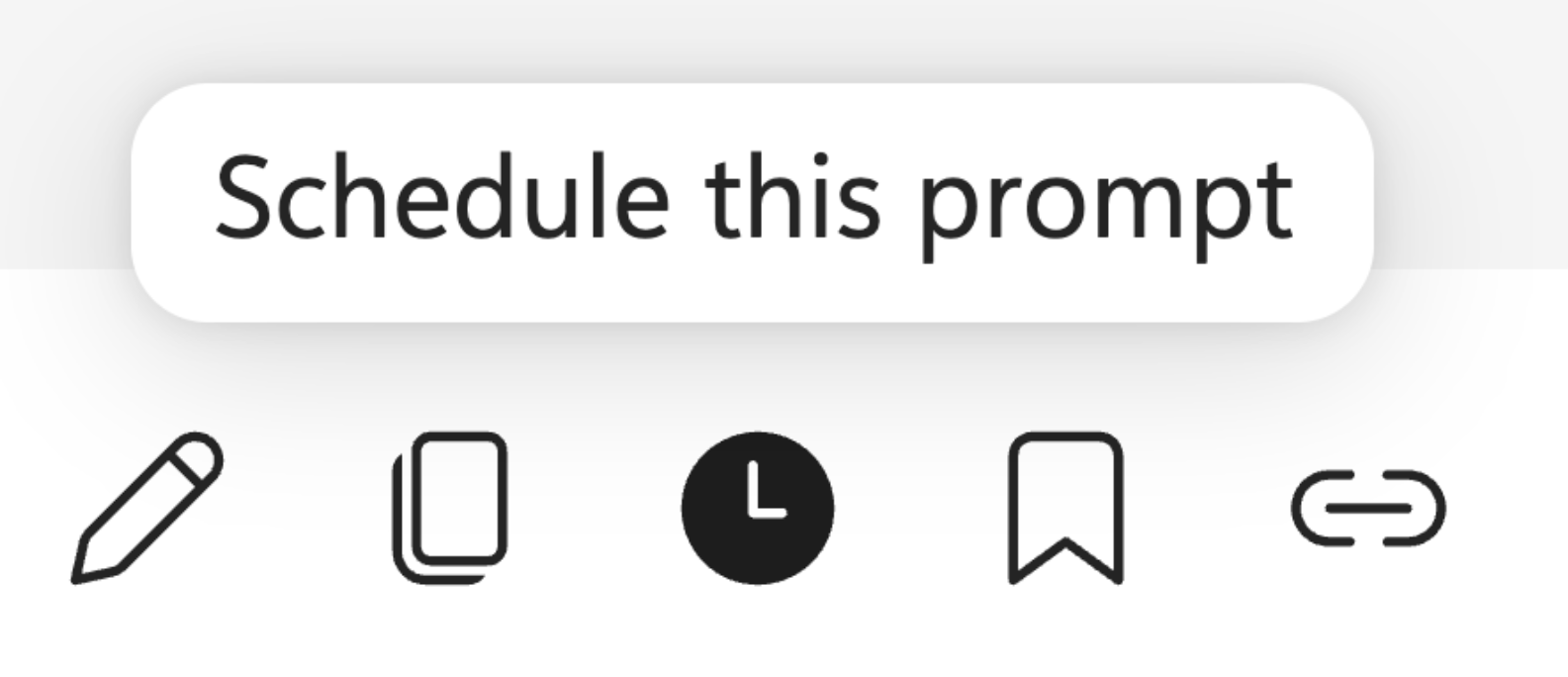
Describe your recurring task using the DIRECT framework, then send the prompt. After, click on the "clock" icon below the prompt.
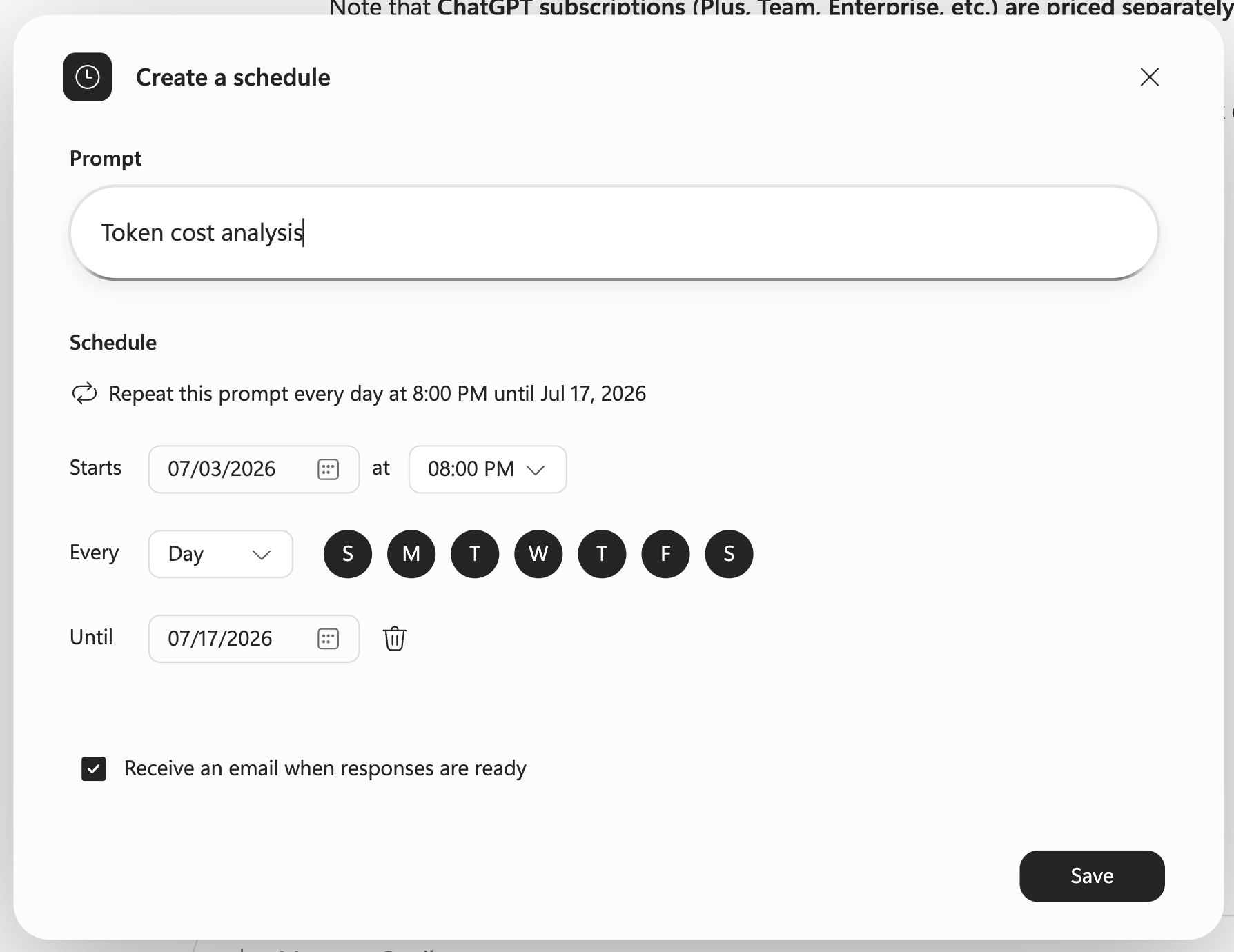
This will open a prompt configuration box where you can specify the prompt, define the schedule, and set whether or not you want an email upon prompt completion.
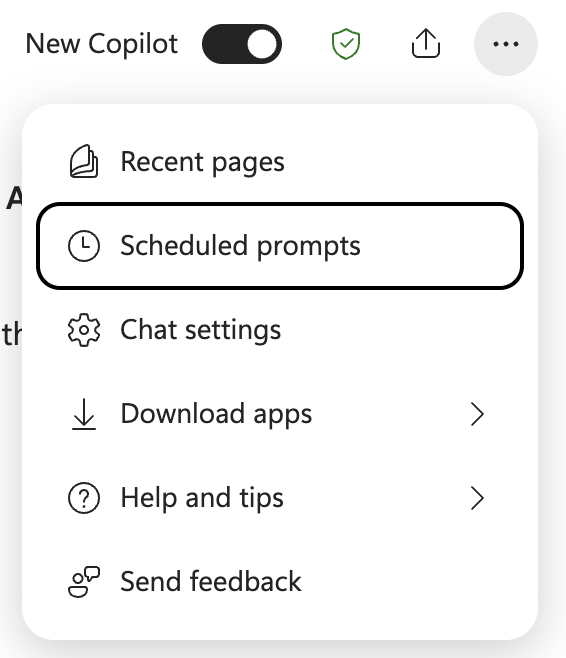
Additionally, you can edit your existing prompts by clicking on the ellipsis icon in the upper right corner and selecting "Scheduled prompts."
Prompting Best Practices
Scheduled Prompts work best when the prompt is complete enough to run without you present. Use the DIRECT framework to make the task clear.
Doing
Name the action Copilot should perform.
Example:
“Review the last 7 days of Canva designs and identify the strongest, weakest, and highest-priority updates.”
Information
Tell Copilot what sources or context to use.
Example:
“Use only the designs, notes, or links I provide in this task. Do not invent missing context.”
Role
Give Copilot a practical lens.
Example:
“Act as a LearnAIR content reviewer focused on clarity, learner value, and visual consistency.”
End Goal
Define what the result should help you do.
Example:
“The goal is to help me quickly decide what needs revision before sharing with a client.”
Context
Add what matters for this situation.
Example:
“These designs are for educational clients. Prioritize clear instruction over decorative polish.”
Tone / Format
Specify the output structure.
Example:
“Return a short table with: design name, what works, what needs improvement, recommended next action, and priority.”
Technical Details
Scheduled Prompt Limit
You can create up to 10 scheduled prompts.
Scheduled Prompt Review
When reviewing scheduled prompts, it is important to ensure the prompt runs as you expect by running an scheduled prompt immediately.
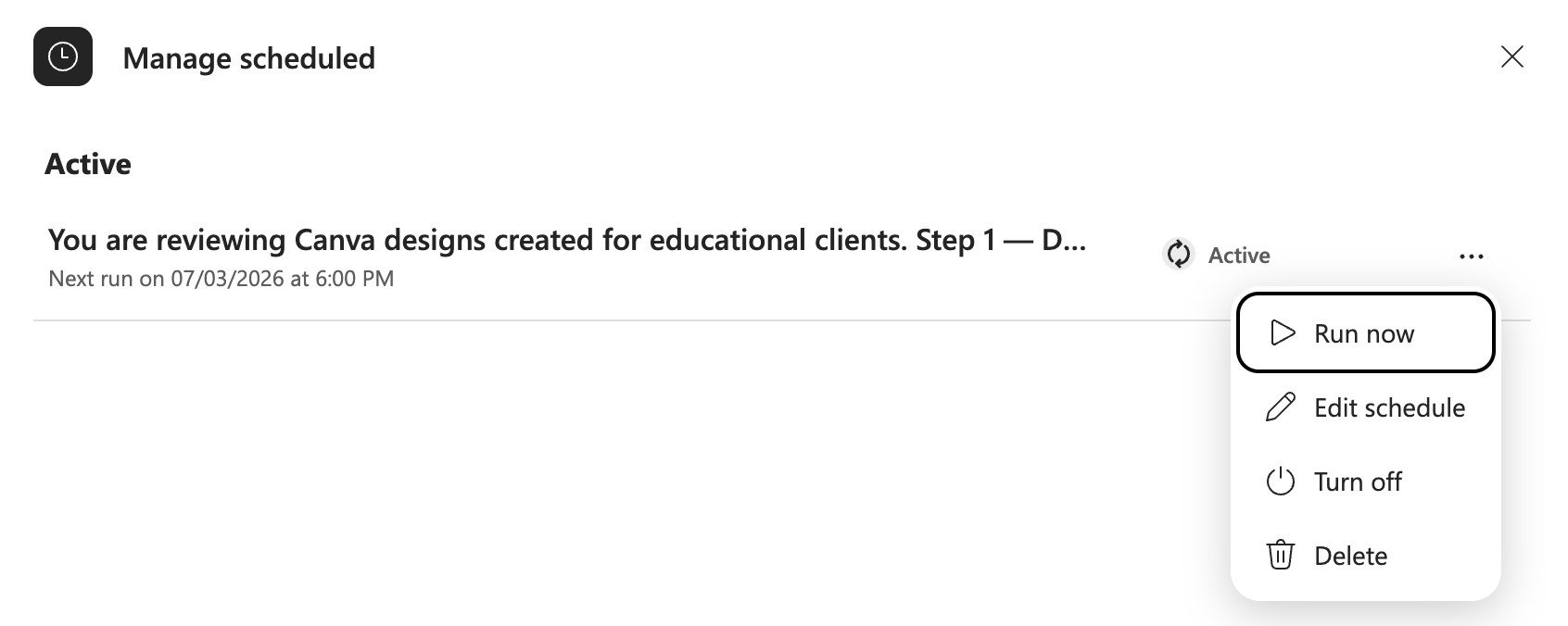
Also verify the schedule, turn it off, or delete it.
Scheduled Prompt Access
Microsoft 365 Copilot works with content in Microsoft Graph, such as emails, chats, and documents the user has permission to access. Microsoft also states that prompts, responses, and data accessed through Microsoft Graph are not used to train foundation large language models. It can also connect to other sources you have linked, such as Canva, to incorporate relevant content from those platforms.
Limitations
Scheduled Prompts are not a full automation system. They run Copilot prompts at scheduled times and frequencies; they are best for recurring summaries, reminders, reviews, and preparation routines.
Copilot can only work with content it can access. If a file, email, meeting, or Teams conversation is outside your permissions, Copilot should not be expected to include it.
Finally, responses still need review. Microsoft notes that Copilot responses can be incorrect and should be verified before use. Scheduled Prompts can save human time, but the human still owns the judgment, accuracy check, and final decision.
Comments (0)
Popular

Dive in