

Copilot Features & Capabilities
July 21, 2026 · Last updated on September 17, 2026
Copilot Cowork

# Features and capabilities
# Copilot cowork
# Agentic AI
Delegate multi-step work across Microsoft 365 while staying in control of each action.
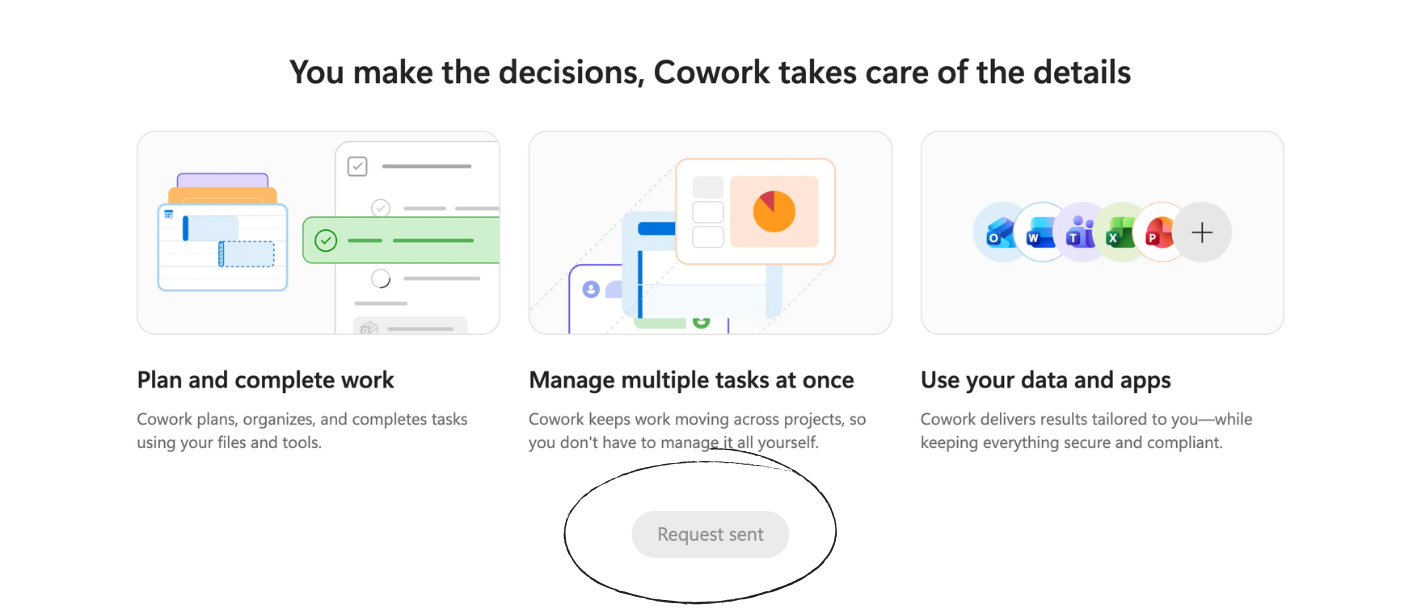
Copilot Cowork completes multi-step tasks across Microsoft 365. It can create documents, manage files, draft communications, schedule meetings, post in Teams, and coordinate work across multiple apps.
Unlike Copilot Chat, Cowork can move from planning to action. You describe the outcome, review its progress, and approve important actions before they happen.
Cowork uses usage-based billing, meaning your organization pays according to how much Cowork is used, including model responses, tool calls, skills, image generation, and browser tasks. For this reason, an administrator must enable billing and give you access before you can use it.
How to Use Cowork
Start a task
Once access is approved, open Cowork and describe what you want completed.
Example:
“Review this week’s project emails and meeting notes. Create a status report, identify unresolved decisions, and draft follow-up emails for each project owner. Save the emails as drafts.”
You can also attach files from your device, OneDrive, SharePoint, or Teams.
Cowork breaks the request into steps and shows its progress as it works.
Approve actions
Cowork asks for approval before completing actions such as sending an email, posting in Teams, or scheduling a meeting.
Review the content, recipients, dates, attachments, and permissions before selecting Send, Post, or Create. There is the option to approve similar actions for the remainder of a conversation. Use this option carefully because later actions may receive less direct review.
Review the result
When the task is complete, review the files and actions Cowork produced.
The side panel may show:
- Task progress
- Files you provided
- Files Cowork created
- Skills used
- Scheduled tasks
- Approved permissions
You can preview supported files, download deliverables, or ask Cowork to make changes.
Prompting Best Practices
Give Cowork a complete outcome
Cowork is designed for tasks with several connected steps.
Instead of:
“Summarize my emails.”
Try:
“Review unread project emails from the past seven days. Summarize key updates, identify messages requiring a response, and draft replies for the three highest-priority items. Do not send them.”
Identify the sources
Tell Cowork where to find the information.
Example:
“Use Outlook emails, Teams meeting notes, and the current project plan in SharePoint. Treat the project plan as the source of truth.”
This reduces the chance that Cowork relies on outdated or unrelated information.
Set action boundaries
State what Cowork may complete and where it must stop.
Examples:
“Create the meeting invitation, but wait for my approval before scheduling it.”
“Organize the files, but do not delete or rename anything.”
“Draft the announcement, but do not post it.”
Use Cowork for work that justifies the cost
Because Cowork is billed by usage, reserve it for tasks that benefit from planning, multiple tools, or several actions.
A focused request also limits unnecessary consumption. Include the goal, relevant sources, boundaries, and expected output from the beginning.
Technical Details
Usage-based billing
Your organization must enable usage-based billing and assign approved users to a spending policy. Administrators can monitor consumption, approve access requests, set limits, and manage organizational costs through the Microsoft 365 admin center.
Cowork consumption can include:
- Model responses
- Tool and skill calls
- Image generation
- Browser tasks
Complex tasks may use more capacity because Cowork can make several model and tool calls within one request.
Employees may not see the exact price of an individual task. Billing and spending controls are managed by the organization.
Access requirements
To use Cowork, you need:
- A Microsoft 365 Copilot license
- Cowork enabled in your organization
- Usage-based billing enabled for your account
- A supported browser or Microsoft 365 Copilot app
- Anthropic models permitted within your organization’s tenant
Availability may also depend on your region, language, organizational policies, and product rollout.
Supported work
Cowork can:
- Send, reply to, and draft Outlook emails
- Schedule meetings and manage calendar events
- Create Word, Excel, PowerPoint, and PDF files
- Post in Teams
- Search organizational information
- Manage files in OneDrive and SharePoint
- Conduct research
- Prepare briefings and stakeholder communications
- Run scheduled prompts
Capabilities may vary depending on your organization’s settings, available plugins, and connected systems.
Permissions and human approval
Cowork uses your Microsoft 365 identity and can only access information you are permitted to use.
It requests approval before taking important actions. You can also pause, redirect, or cancel a task while it is running.
Scheduled tasks
Cowork can run prompts once or on a recurring schedule.
Example:
“Every Friday at 3:00 p.m., summarize my project emails from the week and create a status report.”
Cowork asks for approval before activating the schedule. You can later edit, pause, or cancel it from My tasks.
Plugins and skills
Cowork can use skills and plugins to extend what it can do. Plugins may add specialized workflows or connections to external systems.
Your organization controls which plugins are available and who may use them.
Limitations
Cowork may select the wrong source, misunderstand instructions, or prepare an incorrect action. Errors can also compound across a multi-step task.
Some current limitations include:
- It cannot access files stored only on your device.
- It cannot delete files or folders in OneDrive or SharePoint.
- It cannot read encrypted files.
- Attached files must be under 200 MB.
Usage is another important constraint. Broad tasks, repeated revisions, browser work, and unnecessary tool calls can increase organizational costs.
Use Cowork when the value of completing the full workflow outweighs the cost of consumption. Review every important action before approving it. This is the Human Part!
Comments (0)
Popular

Dive in