

Copilot Features & Capabilities
July 20, 2026 · Last updated on September 17, 2026
Copilot Create Feature

# Create
# Design
# Features and capabilities
Learn what is possible with Microsoft 365 Copilot Create
Microsoft 365 Copilot Create is a dedicated workspace for generating visual and creative content from a prompt or template. It brings together AI-powered creation tools that help you quickly produce images, videos, banners, posters, infographics, stories, PowerPoints, Word documents, and more.
How to create content in Copilot Create
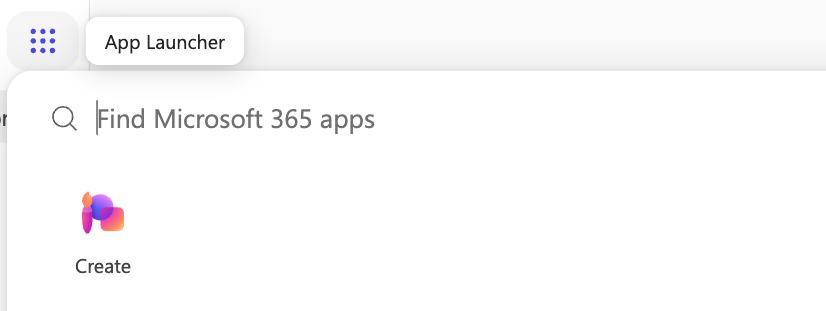
1. Click on the 9 dot App Launcher in the upper left side, then select "Create."
2. Select the content type you want (eg. "Design an Infographic"), type your prompt, and select your brand kit.
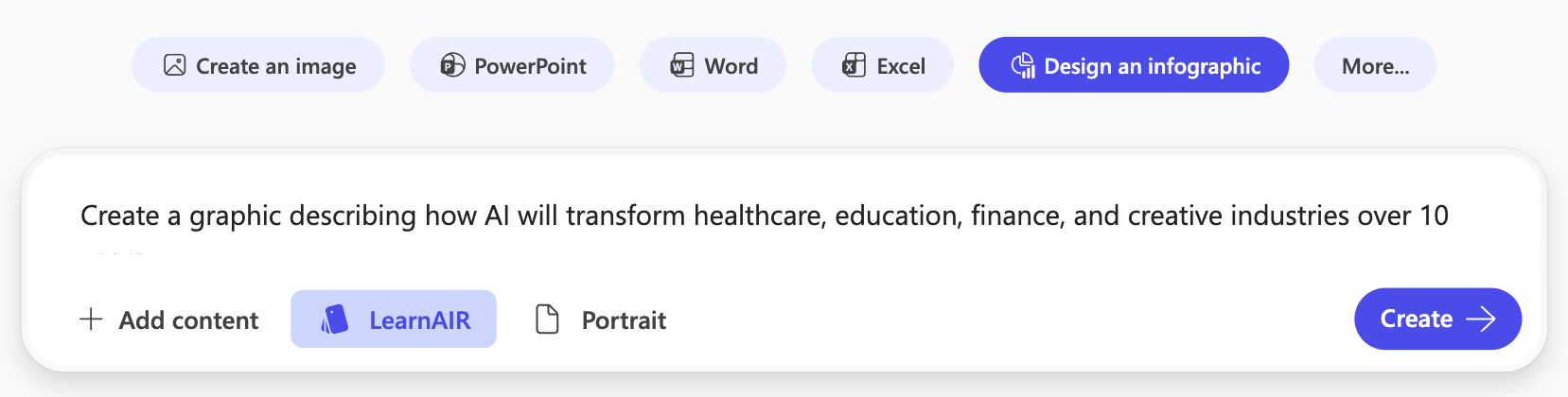
3. Click "Create" and refine your design through the "Transform" or "Edit" editing features.
4. Your design gets automatically saved to your Copilot Library. You can also download the image, or save it as a PNG, JPG, PDF, or PPTX.
Prompting Best Practices
1. Be explicit about the final deliverable
Use DIRECT Prompting as a framework to guide what you want the final deliverable to look like.
2. Describe the audience first
Make sure to mention your audience in the prompt, as creative quality improves when Copilot knows who it's designing for.
Example:
"Create a recruiting poster for recent college graduates that will be printed on campus bulletin boards. Act as a university marketing designer. Use a modern, energetic design that highlights career growth and encourages students to apply."
3. Specify visual direction
The more visual constraints you provide, the less generic the output becomes.
Mention things like:
- colors
- photography style
- illustration style
- mood
- composition
- typography
If your organization has a Brand Kit, select the Kit below your prompt. This automatically applies your approved brand colors, logos, fonts, and other visual assets, helping create on-brand content without describing them in every prompt.
4. Use Brand Kits whenever possible
If your organization has a Brand Kit configured, select it directly instead of manually describing your branding every time. Brand Kits allow Copilot to automatically apply approved logos, colors, fonts, templates, imagery, and brand voice across generated content.
Technical Details
Brand Kits
A Brand Kit helps Microsoft 365 Copilot automatically apply your organization's branding when generating images, banners, posters, presentations, and other visual assets. Brand Kits can include:
- Logos
- Brand colors
- Fonts
- Templates
- Images and icons
- Brand voice
- Brand guidelines (PDF)
- Visual style guidance
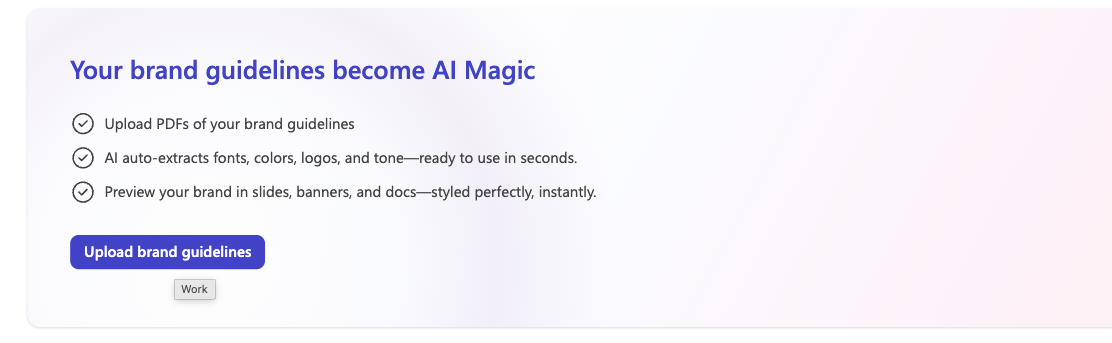
Copilot can even extract many of these elements automatically from your existing brand guidelines document, which you can review and refine before publishing.
How to create a Brand Kit
- Open Create
- Select More > Brand Kits
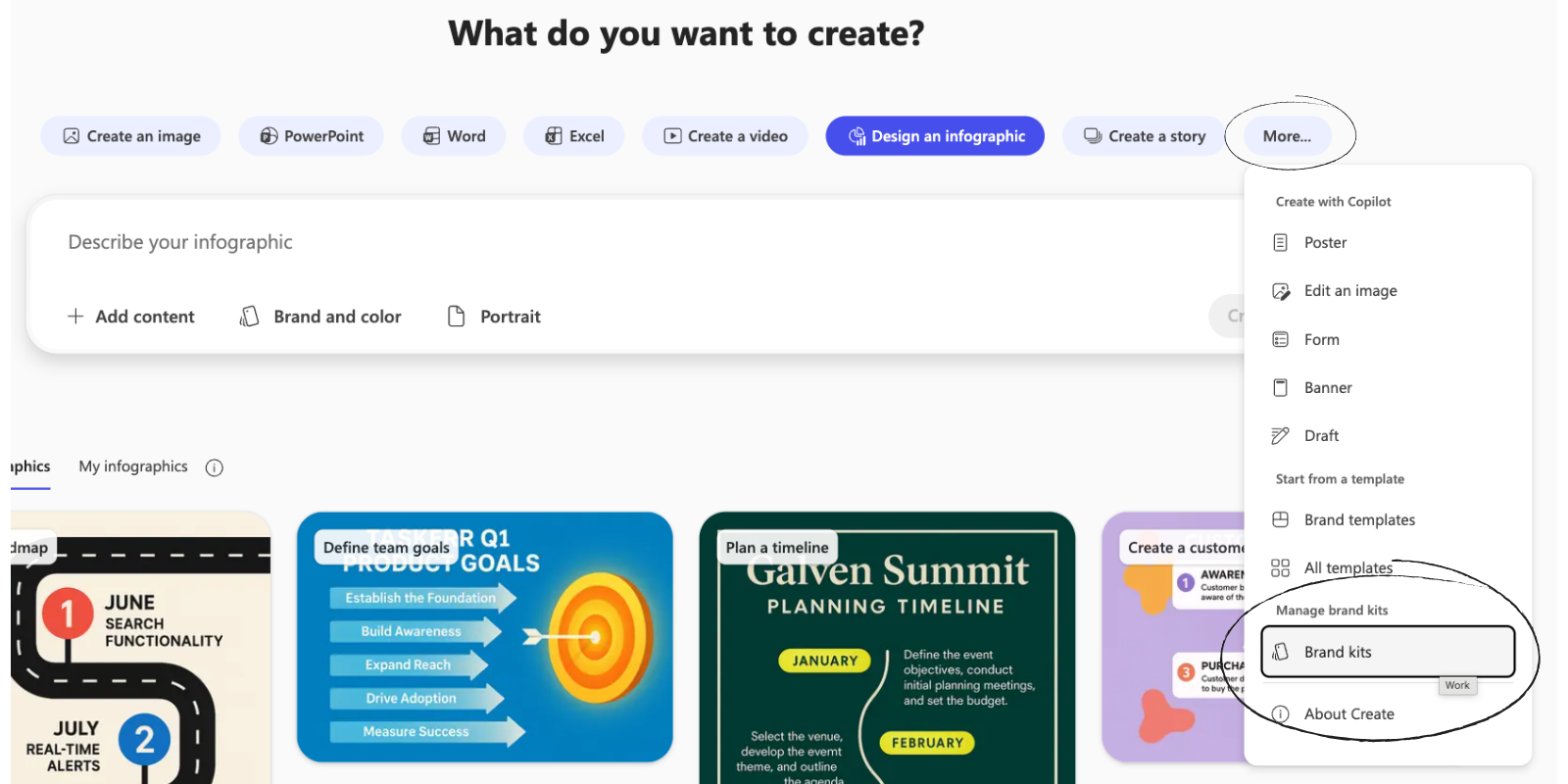
3. Choose Add Brand Kit
4. Upload your:
- logos
- templates
- fonts
- colors
- images
- brand guidelines PDF
You can also let AI extract your Brand Kit if you have an existing brand book.
Supported outputs
Create can generate:
- Images
- Posters
- Banners
- Videos
- Stories
- Infographics
- Forms
- Drafts
- Templates
Copilot Create helps you move from idea to finished visual more quickly. With a clear prompt and your organization’s Brand Kit, you can create polished, on-brand materials without starting from scratch each time.
Comments (0)
Popular

Dive in