

Copilot Features & Capabilities
July 21, 2026 · Last updated on September 17, 2026
Copilot Connectors

# Features and capabilities
# Connectors
Connect Copilot to approved workplace systems and bring more of your organization’s information into the conversation.
Microsoft 365 Copilot can retrieve information from services beyond Microsoft 365 through Copilot connectors. Connectors extend Copilot beyond information stored in tools such as Outlook, Teams, SharePoint, and OneDrive. Depending on what your organization has enabled, Copilot may also retrieve information from platforms such as Google Calendar, HubSpot, Jira, Salesforce, ServiceNow, Canva, and other business systems.
This allows you to ask Copilot to find, summarize, compare, and reason across information stored in your organization’s connected tools. Copilot respects the access permissions established in the original system, so users should only receive content they are already authorized to view.
Your organization controls which connectors are available. Having a Microsoft 365 Copilot license does not automatically provide access to every connector in Microsoft’s catalog. Availability depends on administrator configuration, organizational policy, licensing, external service requirements, and Microsoft’s product rollout.
How to Use Connectors
View the available Connectors
Select your profile or settings menu, then open Chat settings.
Select Sources from the left navigation panel.
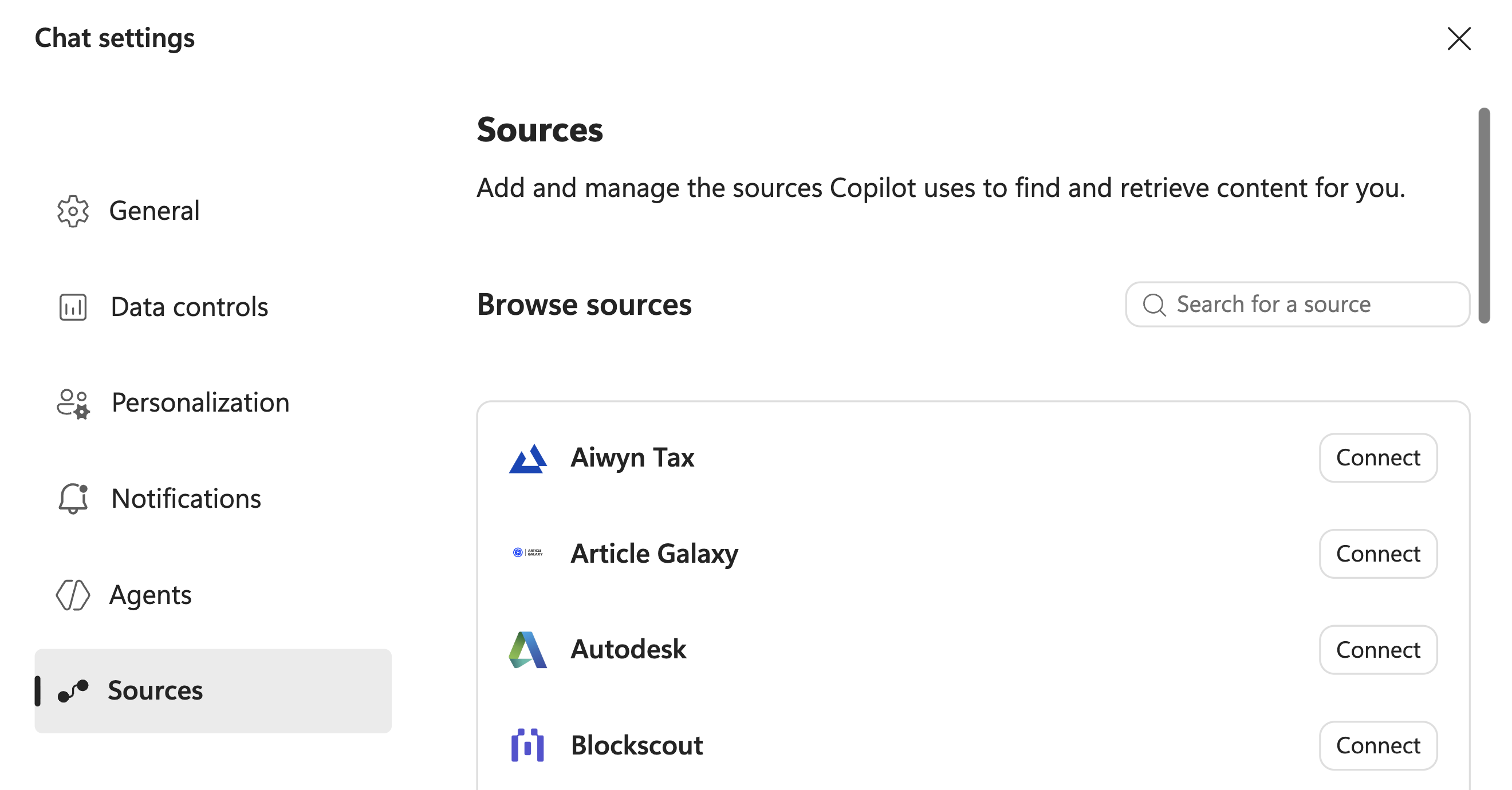
Microsoft provides more than 100 prebuilt Copilot connectors, but the exact options shown in your account depend on what is available and permitted in your organization.
Connect an available Source
Find the service you want Copilot to access.
Select Connect beside the source.

Depending on the connector, you may be asked to:
- Sign in to the external service.
- Select the account you want to connect.
- Review the requested permissions.
- Approve Copilot’s access.
- Complete an authentication process required by your organization.
Follow the onscreen instructions to complete the connection.
Some sources may already be connected at the organizational level. Others require each user to authenticate individually before Copilot can retrieve information from the service.
Ask Copilot to use the Source
Once the connection is active, tell Copilot which source to search and what information you need.
Examples:
- “Search HubSpot for recent activity associated with the Northwind account.”
- “Review my Google Calendar and create a preparation checklist for tomorrow’s meetings.”
- “Find the latest customer research available through Forrester.”
- “Search Linear for open issues related to the mobile application.”
- “Use the connected project systems to summarize the outstanding decisions for this launch.”
Copilot may cite the external items it used in its response. Open those citations to review the original information before relying on the summary.
Prompting Best Practices
Name the Source
Tell Copilot which system contains the information you need.
Instead of:
“Find the customer update.”
Try:
“Search HubSpot for the most recent update associated with the Northwind account.”
Naming the system helps Copilot narrow its search and increases the likelihood that it retrieves information from the correct workplace source.
Add identifying details
Include details such as:
- Project, customer, or account name
- File or record type
- Owner or author
- Date range
- Status
- Department or team
- Relevant keywords
Example:
“Search Linear for unresolved issues assigned to the product team during the last 30 days.”
Specific details give Copilot stronger search boundaries and make it easier to identify the correct information.
Ask Copilot to transform the information
Connectors become more useful when you ask Copilot to do something with the information it retrieves.
Examples:
“Review tomorrow’s meetings in Google Calendar and create a preparation checklist for each one.”
“Find recent customer activity in HubSpot and identify accounts that may require follow-up.”
“Search the connected research sources for information about renewable energy adoption and summarize the three most relevant findings.”
“Find open product issues in Linear and group them by priority and owner.”
This moves the task beyond basic retrieval and allows Copilot to operate as a more useful digital counterpart.
Set boundaries when multiple Connectors are available
When several systems contain similar information, specify which sources Copilot should prioritize.
Example:
“Use HubSpot for customer activity and Linear for product issues. Do not use general web results.”
You can also ask Copilot to separate findings by source:
“Summarize the available information and organize the response into HubSpot findings and Linear findings.”
Review the citations
Ask Copilot to identify the records, files, events, or external items used to create the response.
Example:
“Summarize the latest project decisions and cite the connected records you used.”
Citations provide a path back to the source material, but they do not replace human review. Open important records before acting on deadlines, customer information, financial details, or workplace decisions.
Technical Details
Permissions and access
Copilot connectors are designed to respect permissions from the underlying service.
Connecting a source should not give you access to information you could not already view in that system. Results are filtered using the identity and permissions associated with your account.
However, organizations must configure permissions carefully. Incorrect identity mapping or overly broad connector settings can expose content to unintended users. Administrators should follow Microsoft’s recommended access controls and test connector results before broad deployment.
Read-only access
Copilot connectors primarily help Copilot retrieve, search, summarize, and reason over external information.
Copilot Chat is read-only by default and generally cannot modify records in an external service through a standard connector. Writing back to another system may require an agent, plugin, action connector, or another separately configured integration.
Comments (0)
Popular

Dive in