

ChatGPT Features & Capabilities
January 14, 2026
Projects in ChatGPT

# ChatGPT
# Projects
Learn about ChatGPT's project feature and how best use it
Projects allow you to organize work inside ChatGPT into persistent, structured workspaces. Instead of isolated chats, Projects help you group conversations, files, instructions, and context around a single goal; such as a client engagement, course build, product launch, or research initiative. Projects are especially useful for work that unfolds over time and requires continuity, memory, and consistency.
How to use projects
To create a project, start by going to the left side bar within ChatGPT and clicking “New Project.”
Then name the project and select an icon.

Consider whether you want the memory to be siloed to the documents within this project (Project-only), or if you want the project to have access to managed memory (Default). Configure that using the settings button.
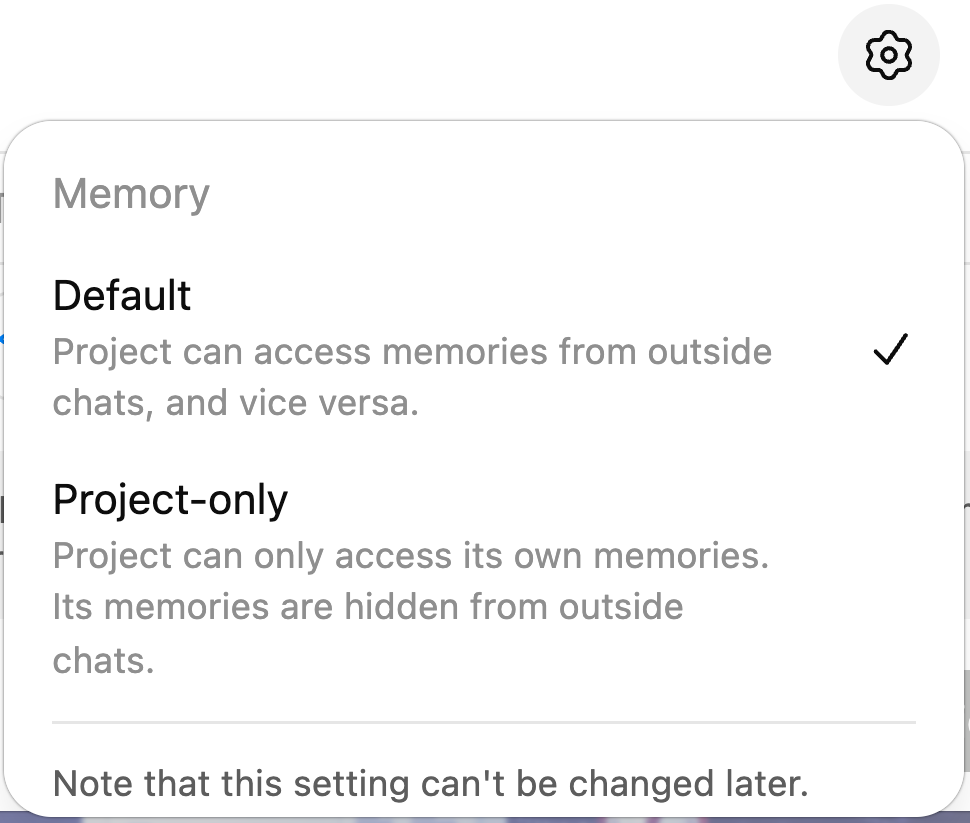
Example: If you are using projects to organize individual client tasks, the memory is best set to “project-only,” so you do not experience data leaks across clients.
Note that the memory cannot be changed later.
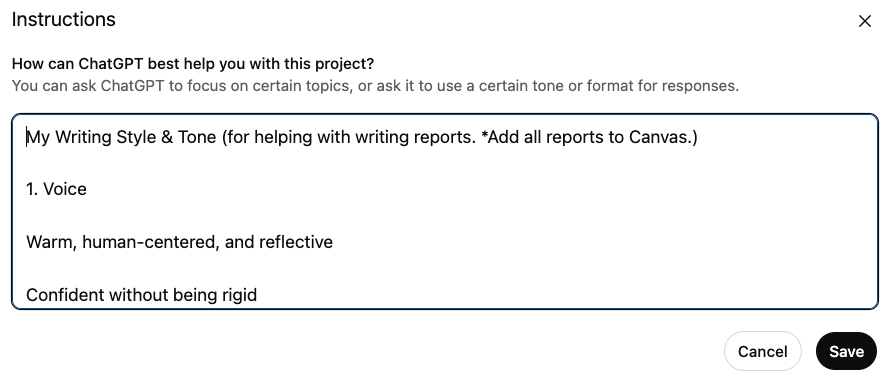
Once created, you can add project instructions that apply to every chat within the project. You can also upload files that the project can reference. These files can be brand books, SOP documents, or examples of gold standard products.
You can now start chats from within your project, or move chats into the project (via drag and drop).
Prompting Best Practices with Projects
Prompting matters because it sets narrows the aperture of all possible responses. Effective prompting guides the model toward a response that’s as close to your intent as possible.
With projects, this power compounds. You can define high-level instructions once, so every prompt you write already carries key DIRECT elements, such as context and information, by default.
How to set your Project Instructions
- [Report/ Writing Based Tasks] AIRhack: Something I love to do is upload an authentic piece of my own writing and to ask ChatGPT to describe my writing style, as if it were talking to another AI. The response will be detailed and often better articulated than I could have. After reviewing the description, I take that output and put it into my project’s instructions and tell it to “always apply this writing style when creating reports/ emails/ appeal letters for me.”
- [Apps] You are able to use apps within projects. If you need to pull in real time information, use the “@” symbol to reference apps in the “Information” section of your DIRECT prompt.
- When you upload files, specify in the instructions when to use that document and what the purpose is.
Example: “Use the file Brand_Guide_v3.pdf for:
- tone and voice
- visual style guidance Do not reuse its examples literally. Just mimic tone and structure.”
- Name the uploaded files clearly, then refer to them in quotes in the instructions.
See "Exit_Readiness_Financials.xlsx" for all numeric data; treat it as the source of truth.
- Add “special instructions” to your project instructions. Some patterns to copy are:
- Decision rules: “If I ask for X, then do Y.”
- Safety/boundaries: e.g., “Replace client names with Client A/B/C” or “Never include PII in output.”
- Tone rules: “Make headlines click‑worthy and high‑impact,” “Be slightly contrarian,” etc.
- Context rules: “Always think as an executive operations analyst” / “Always think as an alliance leader for Microsoft ISVs.”
Technical Details
Project Capabilities
Within a project you can use the tools of a normal chat like deep research, customGPT call-ins, scheduled task creation, or canvas mode.
Memory
Memory can be siloed to just the project, or can access your entire system memory. You decide the memory structure when you first create the project, and cannot change this after initial creation.
CustomGPTs & Projects
You cannot start a project chat as a custom GPT.
- If you start a chat with a custom GPT, ChatGPT moves it out of the project into normal chats.
You can call custom GPTs into an existing project chat:
- Via @GPTName
- The custom GPT then acts only on:
- That chat’s history
- The project’s knowledge/memory
Once you switch GPTs or end the turn, the project instructions take over again.
Comments (0)
Popular

Table Of Contents
Popular
Dive in