

ChatGPT Features & Capabilities
January 14, 2026
Scheduled Tasks in ChatGPT

# Scheduled Tasks
# ChatGPT
Understand when and how to use scheduled tasks from within ChatGPT
Scheduled Tasks are useful for prompts that you run on a regular basis. For example, running a weekly summary task report, frequent industry update research, or checking daily weather conditions.
How to use scheduled tasks
To schedule an action in ChatGPT, just talk to it!
Type the phrase “Please create a scheduled task for…” in the “Ask Anything” box.
You should see a scheduled action confirmation box pop up. This confirmed your task was scheduled successfully.

You can manage (pause, edit, delete) your scheduled actions by going to “settings” > “scheduled” > “manage.”
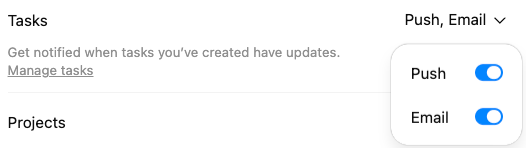
When the task is complete, you can have ChatGPT alert you via an email or a push notification, found in the “Settings” > “Notifications” > “Tasks” > Toggle on:
Prompting Best Practices
- When prompting ChatGPT, be DIRECT: include the time, day, and frequency of action execution.
- If you are working in a chat, and you like the output provided by ChatGPT, you can ask:
- Example: “Can you do this weekly as a scheduled action?”
- This will have ChatGPT create and describe how it interprets the action, often in more precise detail than you would. After it creates that action, you can do the Human Part and make sure the scheduled task’s details are correct.
- Schedule an action to connect with an app and have ChatGPT complete a follow up task based on its findings.
- Example: "Using Gmail, scan my Inbox for unread emails.
Then:
- List the emails that require a response or action within 24 hours (and briefly explain urgency).
- For each urgent email, write a professional reply.
- Include bullet-point next steps in each drafted reply."
Technical Details
Capabilities
Scheduled actions can perform web search or reference any of your connected apps.
Schedule Task Usage Restriction
You cannot run a scheduled action from inside a project or customGPT.
Comments (0)
Popular

Table Of Contents
Popular
Dive in