

Copilot Features & Capabilities
July 2, 2026 · Last updated on September 17, 2026
Document Creation in Pages

# Canvas
# Pages
# Document creation
# Copilot
# Features and capabilities
Use Copilot Pages to turn chat responses into editable, organized drafts you can refine over time.
Pages is Microsoft Copilot’s dedicated workspace for turning a Copilot response into an editable draft. Instead of leaving useful content inside a chat thread, Pages gives you a focused place to write, organize, revise, and keep building with Copilot’s help. Pages is ideal for plans, outlines, study guides, checklists, scripts, brainstorming notes, and lightweight documents that benefit from structured iteration. You must be signed in to Copilot Chat or M365 to use Pages.
For work accounts, Copilot Pages in Microsoft 365 Copilot Chat can also support collaboration, allowing people to contribute, review, and build on shared ideas in one place. Availability may depend on your organization’s Microsoft 365 settings and licensing.
How to Use Pages
Turn a Copilot response into a Page
Example: “Help me create a checklist for onboarding a new team member.”
After Copilot responds, select "Add to page" below the response.
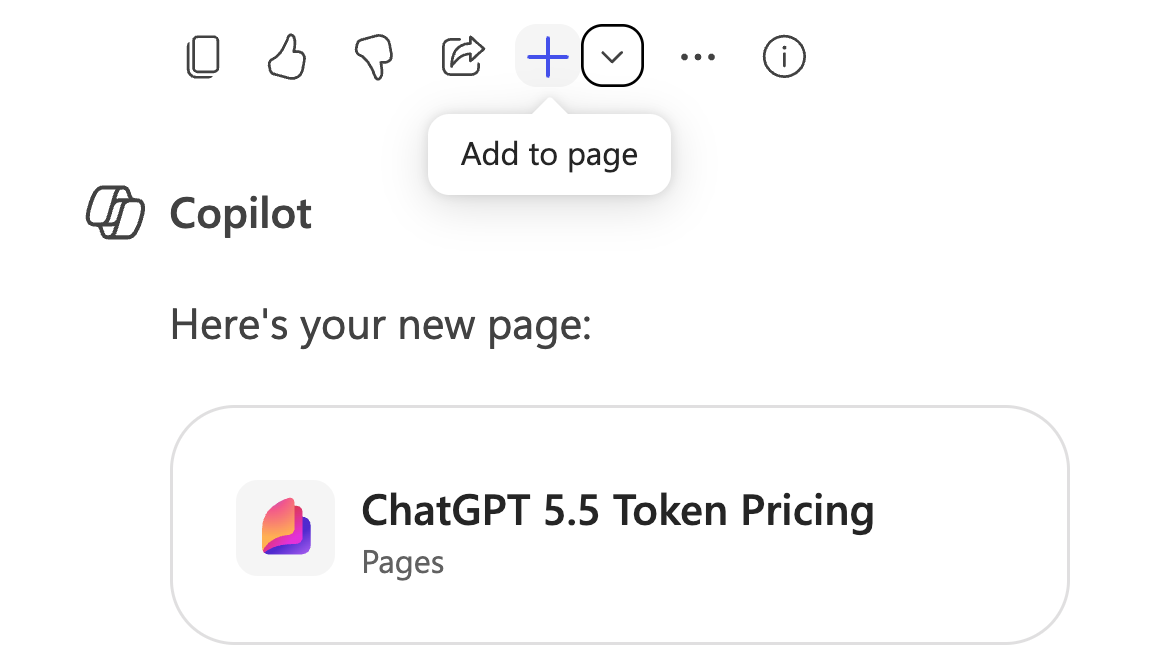
You will see a new page confirmation when the page is created.
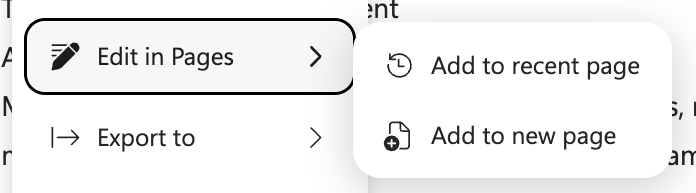
After your Page is created, you can continue the chat, adding new responses to the Page. Copilot will ask whether you want to create a new Page or add the response to an existing Page.
Rename your Page
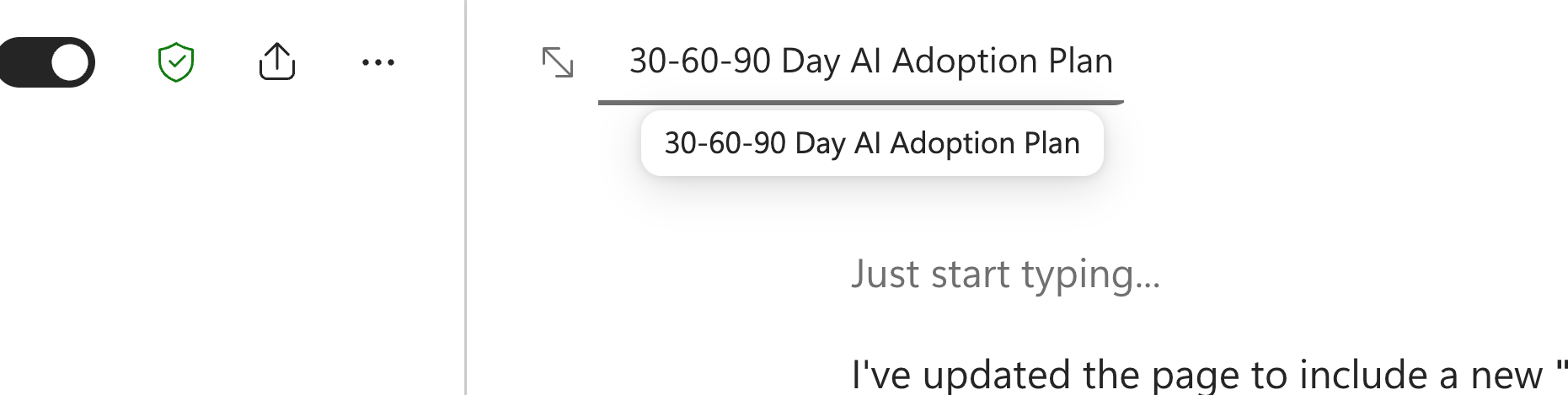
Pages are automatically named based on the first line of text.
To rename a Page, select the Page title and type the new name.
Return to an existing Page
Open the left panel or conversation history to see recent Pages.
If you do not see the Page you need, select Show all pages to view the full list.
Prompting Best Practices
Once content is in Pages, there are a few ways to refine it.
Edit directly in the Page
You can type into the Page yourself, just like a lightweight document editor.
Pages supports common formatting such as bold, italics, underline, bullets, numbered lists, headings, tables, links, and code snippets.
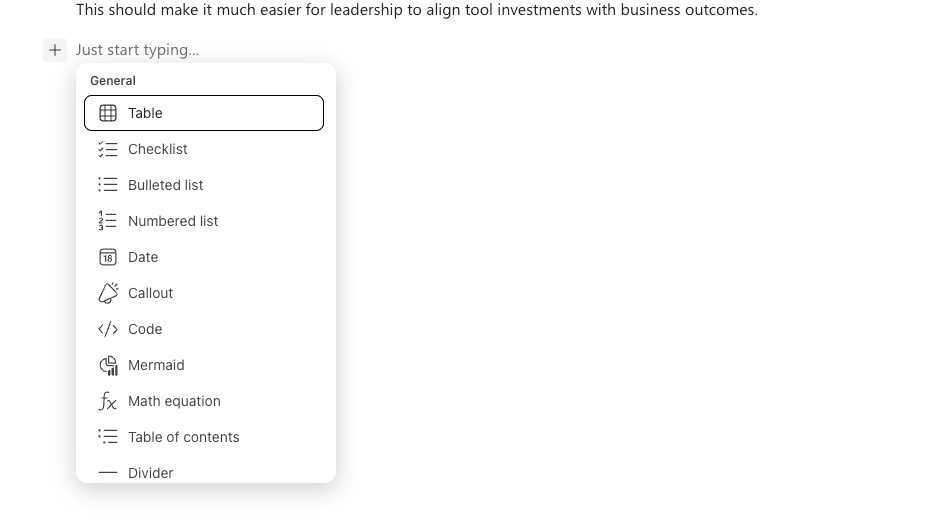
You can edit your Page by typing on it directly, or adding in a chart by clicking on the "+."
Ask Copilot to revise a section
Place your cursor in the Page or highlight the specific text you want to work on.
Select Ask in the toolbar, then tell Copilot what you want changed.
Examples:
“Make this more concise.”
“Rewrite this for a professional audience.”
“Turn this into a step-by-step checklist.”
“Improve the grammar and tone.”
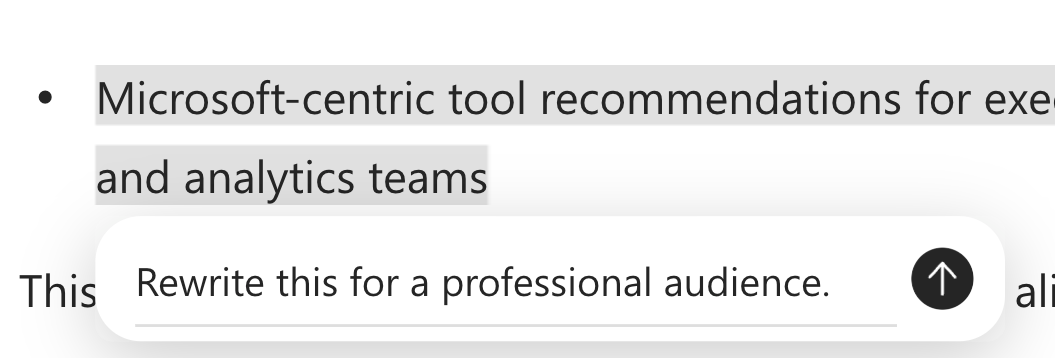
Copilot will show suggested revisions. You can select Apply Revision to accept the change or Reject to keep the original.
Technical Details
Saving your Page
Changes are saved automatically.
You can leave a Page and come back to it later to continue working.
Sharing and collaboration
In personal Microsoft Copilot, Pages are mainly described as a writing and editing workspace.
In Microsoft 365 Copilot Chat, Pages are positioned as a collaborative workspace where teams can build on shared ideas together. Microsoft also notes that Copilot Chat uses Microsoft 365 permissions and enterprise data protection, so access depends on what people are already allowed to view.
Limitations
You must be signed in to use Pages.
Feature availability can vary by region, device, browser, account type, and licensing.
Pages are best for lightweight drafting and iteration. For final reports, formal review, advanced formatting, or external delivery, move the content into Word, Google Docs, or another document tool.
Copilot can still make mistakes, so always review important content before sharing or using it in a workplace setting. This is The Human Part!
Comments (0)
Popular

Dive in