

Copilot Features & Capabilities
July 7, 2026 · Last updated on September 17, 2026
Using Microsoft 365 Copilot Notebooks

# Notebooks
# Workflow
# Work organization
A focused AI workspace for organizing project context, documenting processes, and creating grounded outputs
Microsoft 365 Copilot Notebooks are focused AI workspaces where you can gather the materials that matter for a specific project, process, client, or decision. Instead of asking Copilot to search across everything you can access, you create a smaller working space and add the references you want Copilot to use. Notebooks as a way to bring together files, Copilot Pages, meeting notes, links, and other resources so Copilot can answer questions and create content based on that selected context.
Notebooks are also useful for repeatable workplace processes, such as standard operating procedures, client workflows, review processes, training sequences, or decision frameworks.
How to Use Microsoft 365 Copilot Notebook
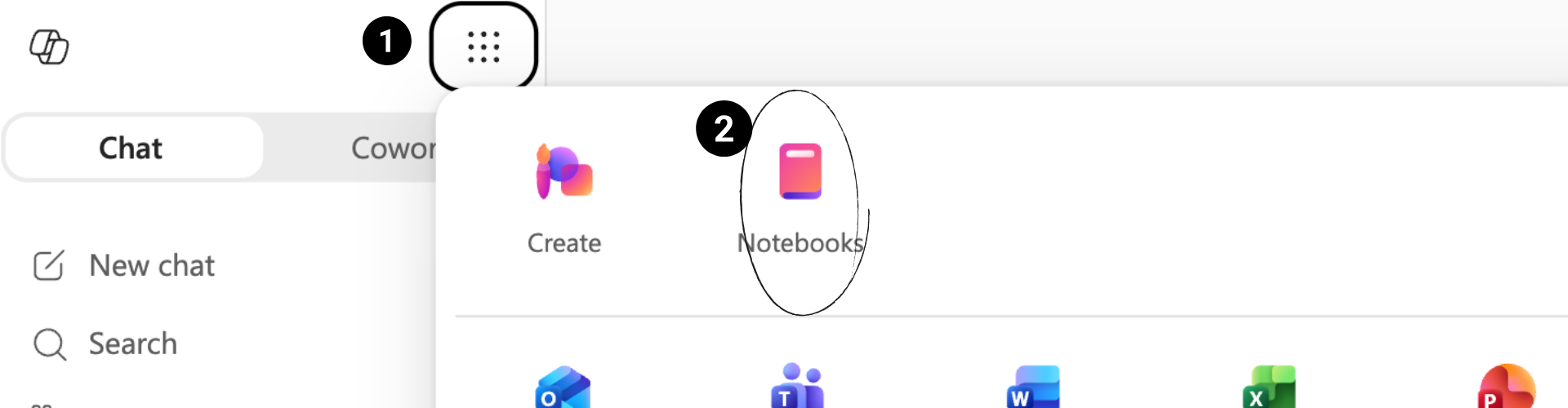
1. Click on the 9 dots on the top left.
2. Select Notebooks.
3. Select "New Notebook."
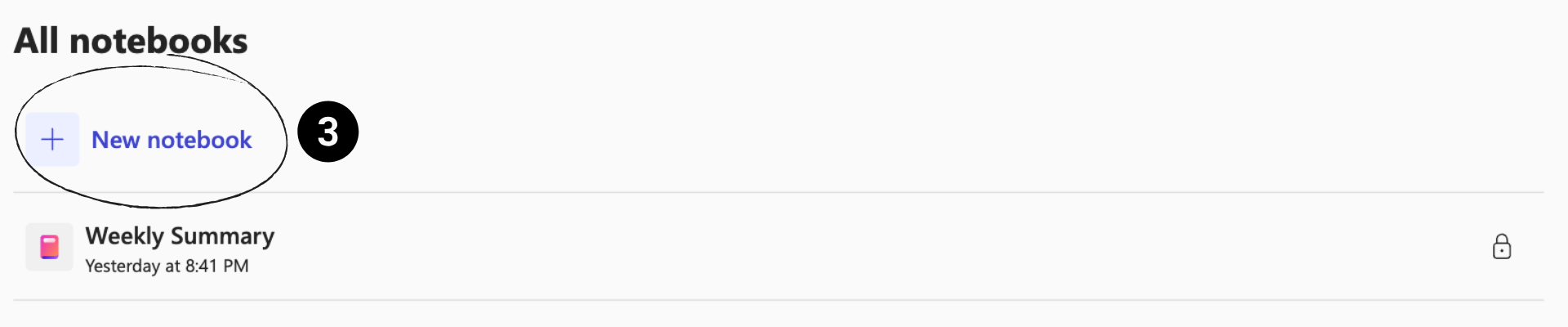
4. A configuration window will pop up. Add all "References" that you want as your Source of Truth. This is all the files, emails, or reference guide you would include in the "Information" section of your prompt.
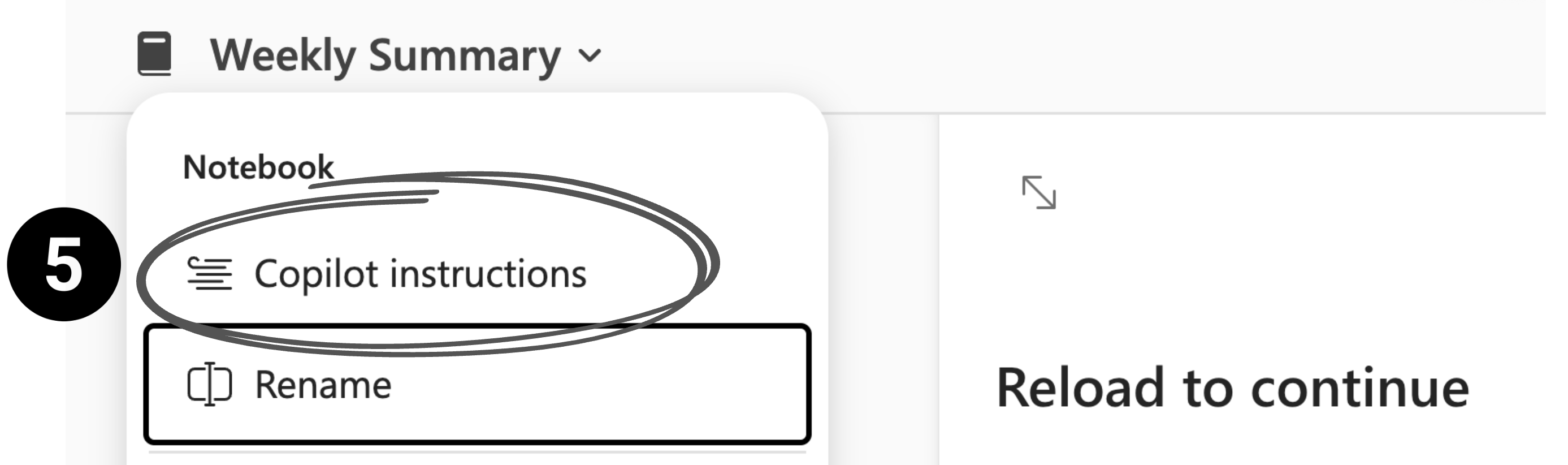
5. Once you create the notebook, click into the "Copilot instructions." This is where you can set what Copilot should do, what information it should prioritize, what role it should take, what outcome it should support, what context matters, and how the response should be formatted.
6. Your interface may include Create options such as audio overview, mind map, study guide, infographic, spreadsheet, document, or presentation. Some options may be labeled Frontier or may vary by plan, tenant, or rollout stage. Everything that you "Create" within the Notebook will be grounded in your context and instructions as the source of truth.
Prompting Best Practices when your Notebook is Created
To get the most out of Copilot, it helps to establish clear guidance from the start. Custom instructions are important because they provide the baseline context that every Copilot response in the notebook is built on.
Once those instructions are set (see Step 5 above), your prompts do not need to repeat everything. Instead, focus on what is new or specific to the task at hand.
Effective prompts in a Copilot Notebook typically include:
- New directions for what you want Copilot to do in this moment
- Additional information that is not already captured in the notebook references
- A role or perspective, if you want Copilot to approach the task differently (for example, as a reviewer, trainer, or analyst)
- A clear goal or outcome, especially when you want a specific type of output
- New context or constraints, such as recent updates or situational details that influence the response
- Preferred output format or tone, if you want the response structured or styled in a particular way
The key difference with prompting within a Notebook is that you do not need to include every element of DIRECT in every prompt. The notebook already contains curated references and custom instructions, which act as the source of truth. Repeating that context can make prompts longer without improving the result.
Instead, treat prompting as a way to guide Copilot within an already grounded environment. Ask focused questions, add only what is missing, and rely on the notebook’s context to do the rest.
Technical Details
Availability
Copilot Notebooks are available to Microsoft 365 Copilot and Copilot Chat licensed users, with a SharePoint or OneDrive license required to create notebooks.
Storage Limits
Copilot Notebooks are stored as
.pod files in a user-owned SharePoint Embedded container also used by Loop My workspace. Microsoft Learn states that this storage counts against the organization’s SharePoint quota, and the application name may appear as Loop in admin experiences.Reference Limits
Notebooks have grounding limits. If a notebook includes too many references, Copilot may not use all of them in a response. For Microsoft 365 Copilot users, Microsoft says only the first 300 references are used for grounding; Copilot Chat users are limited to 50 references.
Supported File Types
Notebooks support references such as Word documents, PowerPoint files, Excel files, PDFs, Copilot Pages, Loop files, and OneNote pages. Microsoft also notes that links to supported Microsoft 365 account file types can be added, but other links, including general web links, are not supported for grounding in notebook chat.
Sharing a Notebook
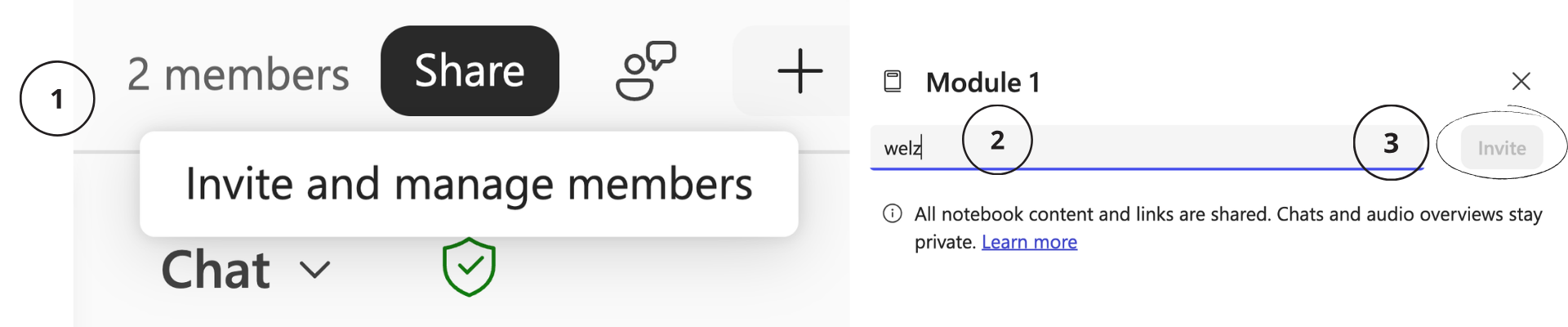
Copilot Notebooks can be shared with collaborators by selecting Share and inviting users by name or email. Sharing a notebook also attempts to share the files referenced within it so recipients can immediately receive grounded AI responses from the same content.
File permissions still apply: if you don't have permission to share a referenced file, collaborators may need to request access separately.
Comments (0)
Popular

Dive in