

Copilot Features & Capabilities
July 2, 2026 · Last updated on September 17, 2026
Copilot Library

# Library
# Copilot
# Efficiency
# Organization
A simple way to organize the pages, images, and visual assets you create with Microsoft 365 Copilot
Copilot Library is the central place to find content you have created with Microsoft 365 Copilot. Instead of hunting through chats, folders, or recent files, you can return to one place to access your Copilot-created pages, images, infographics, posters, banners, and stories.
How to Access Copilot Library
Copilot Library can be easily accessed on the left sidebar:
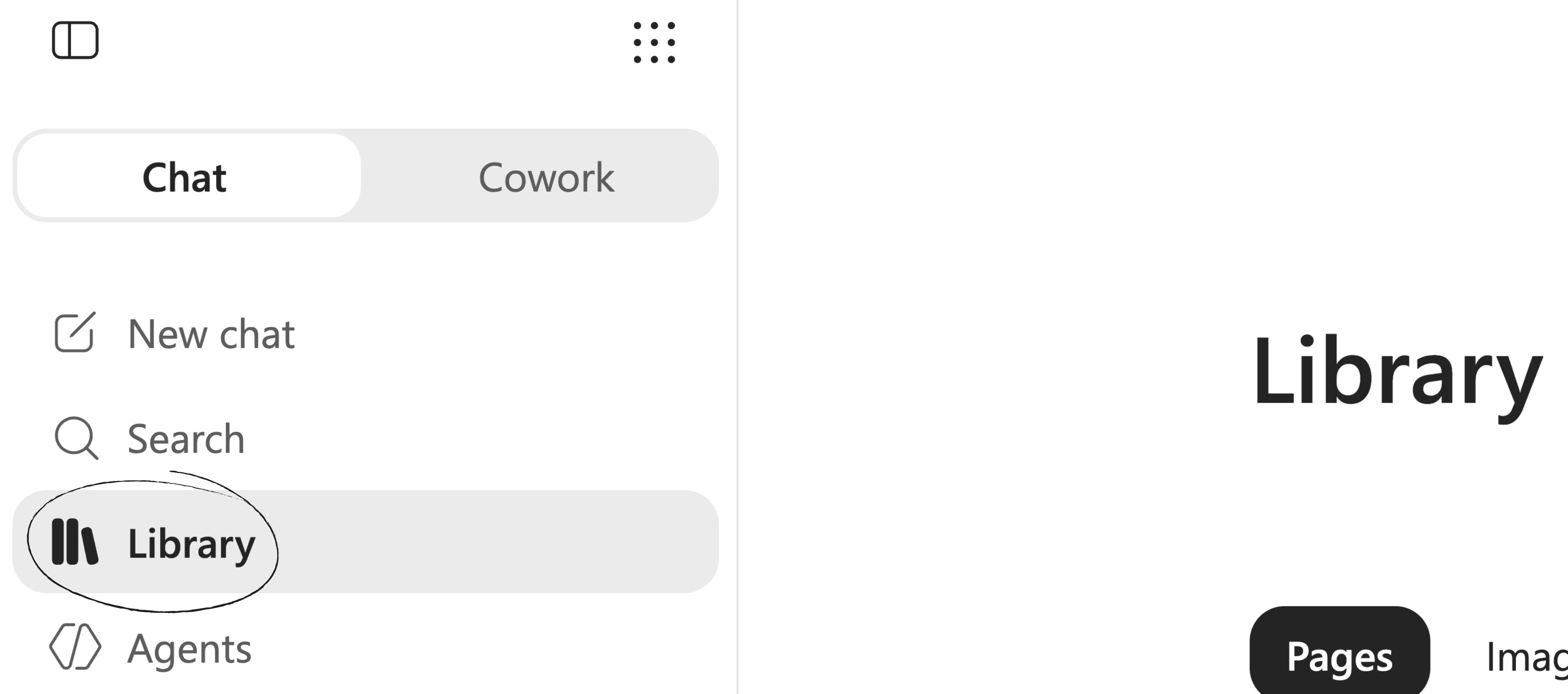
Choose what you want to review by using the available tabs to view your Images or Pages. You can also use search to quickly find specific content by title.
In the Images area, you can filter by type using the All types dropdown to view items such as infographics, stories, posters, and banners, and take actions like downloading, editing, copying, deleting, or copying the prompt used to create an image.
In the Pages area, you can view pages you created, filter for pages shared with you, open a page, add it to a notebook, or delete it.
Best Practices
Use Copilot Library as a place to return to work that is still useful.
When creating an asset in Copilot, name it clearly. A page called “Q3 Onboarding Plan” will be easier to find later than “Draft 1.” Pages are searchable by title, so naming matters.
For images, copy the original prompt when you want to create a consistent version later. This is useful for maintaining the same tone, format, or visual direction across a set of materials.
Technical Details
Asset Organization
Images are sorted by the date they were created. Pages are sorted by last modified date and can be searched by title. This means recently updated pages may appear higher than older pages, even if they were created earlier.
Copilot Library Storage
Copilot Library does not require additional storage by itself. Microsoft describes it as a view that helps users find pages and images they already created. Copilot Pages and Copilot Notebooks, however, are tied to Microsoft 365 storage and admin configuration. Microsoft notes that Copilot Pages and Notebooks are stored in a user-owned SharePoint Embedded container used by Loop My workspace, and storage counts toward the organization’s SharePoint quota.
Organization Admin Settings
Your organization’s admin settings can change what appears. If image creation is disabled, the Images tab may be hidden. If page creation is disabled, the Pages tab may be hidden. If both are disabled, Copilot Library may be hidden altogether.
Comments (0)
Popular

Dive in